
On this page
This post is part of the Email Security Foundations series.
What DKIM actually does
DKIM stands for DomainKeys Identified Mail.
Where SPF checks where a message came from, DKIM proves that the message hasn’t been changed while it was in transit.
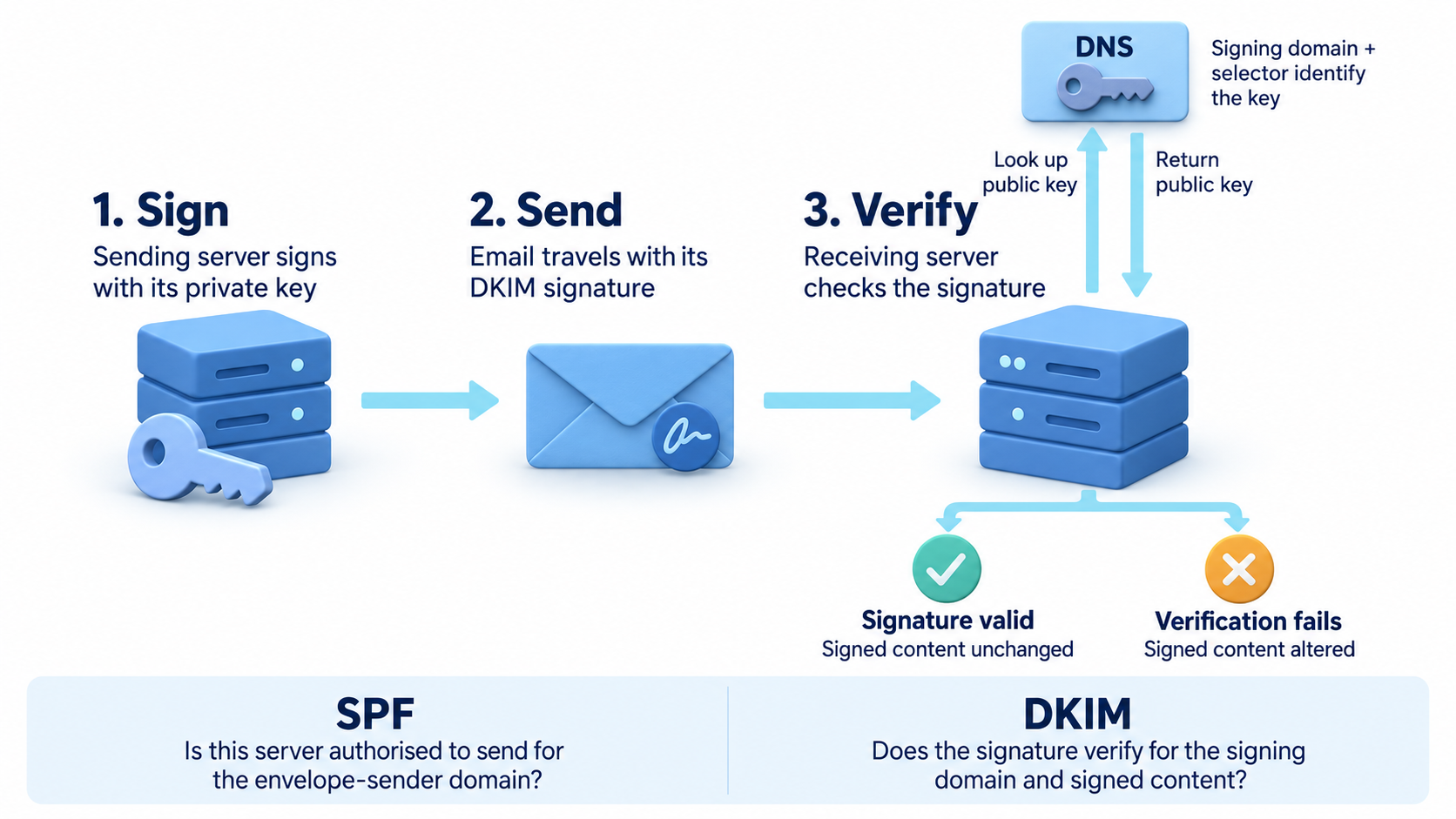
When you send an email, your mail server adds a cryptographic signature to the message. When the receiving server gets it, it looks up your public key in DNS and uses that to verify the signature. If the message was modified after it was signed, the verification fails.
That’s the whole idea. It sounds complicated, but once you understand the moving parts, DKIM in Exchange Online is actually pretty straightforward.
Signing and verification in plain terms
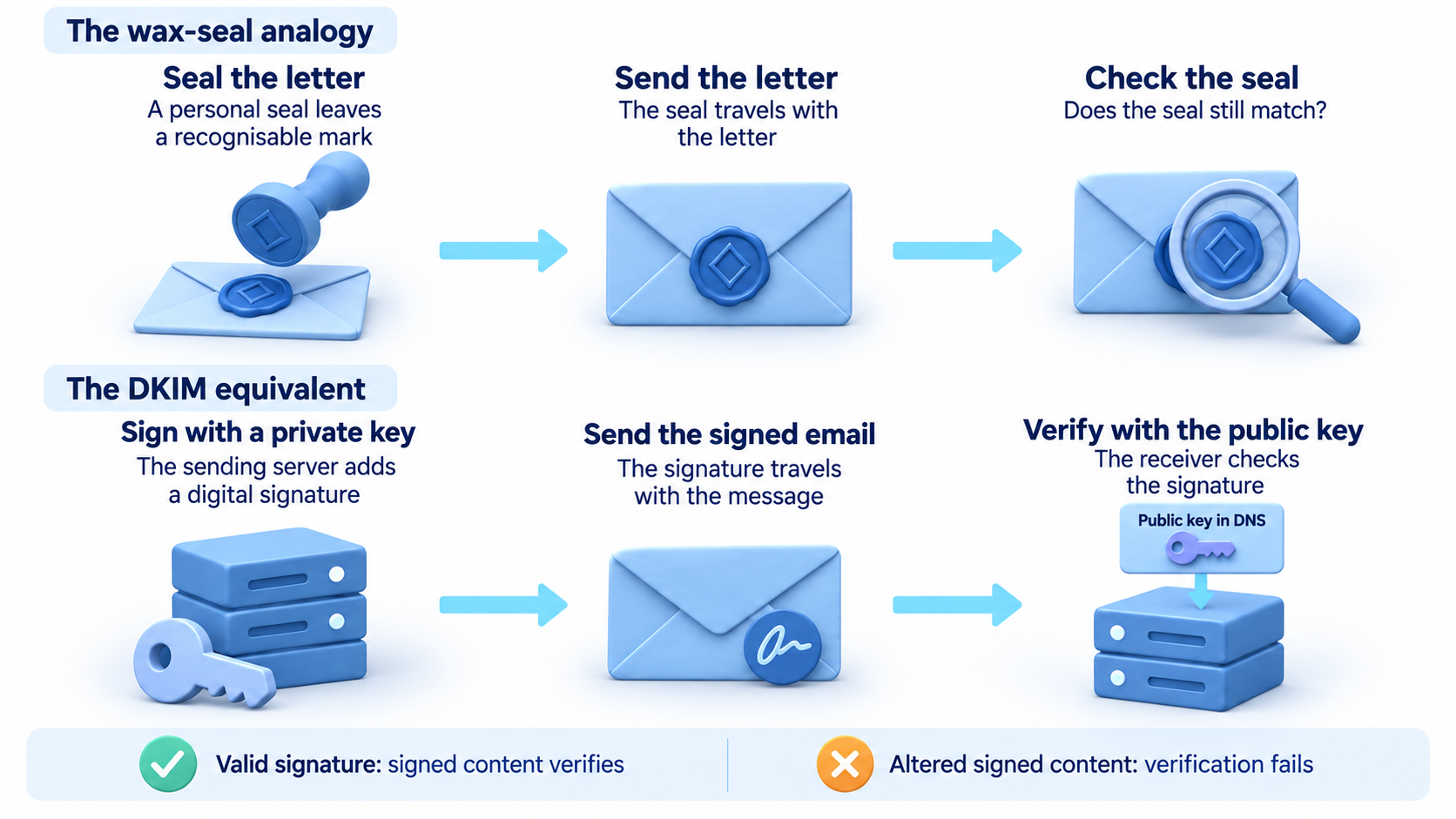
Think of DKIM like a wax seal on an envelope.
When you send a letter, you press your seal into the wax. When the recipient gets it, they can immediately see whether the seal is intact. If someone opened the letter and sealed it again, the seal wouldn’t match.
DKIM works the same way. Your mail server signs the message using a private key that only you control. The receiving server verifies that signature using your public key, which is published in DNS for anyone to look up.
If the signature checks out, the message is authentic. If not, something changed along the way.
What a selector is
A selector is simply a label that points to a specific DKIM key in DNS.
You can have multiple selectors on the same domain. That’s useful if you have more than one system sending mail, or when you want to rotate keys without breaking anything.
Exchange Online uses two selectors by default: selector1 and selector2. At any given time, one of them is actively signing outbound mail. The other is there for key rotation. When you rotate DKIM keys in Exchange Online, Microsoft just flips to the other selector automatically.
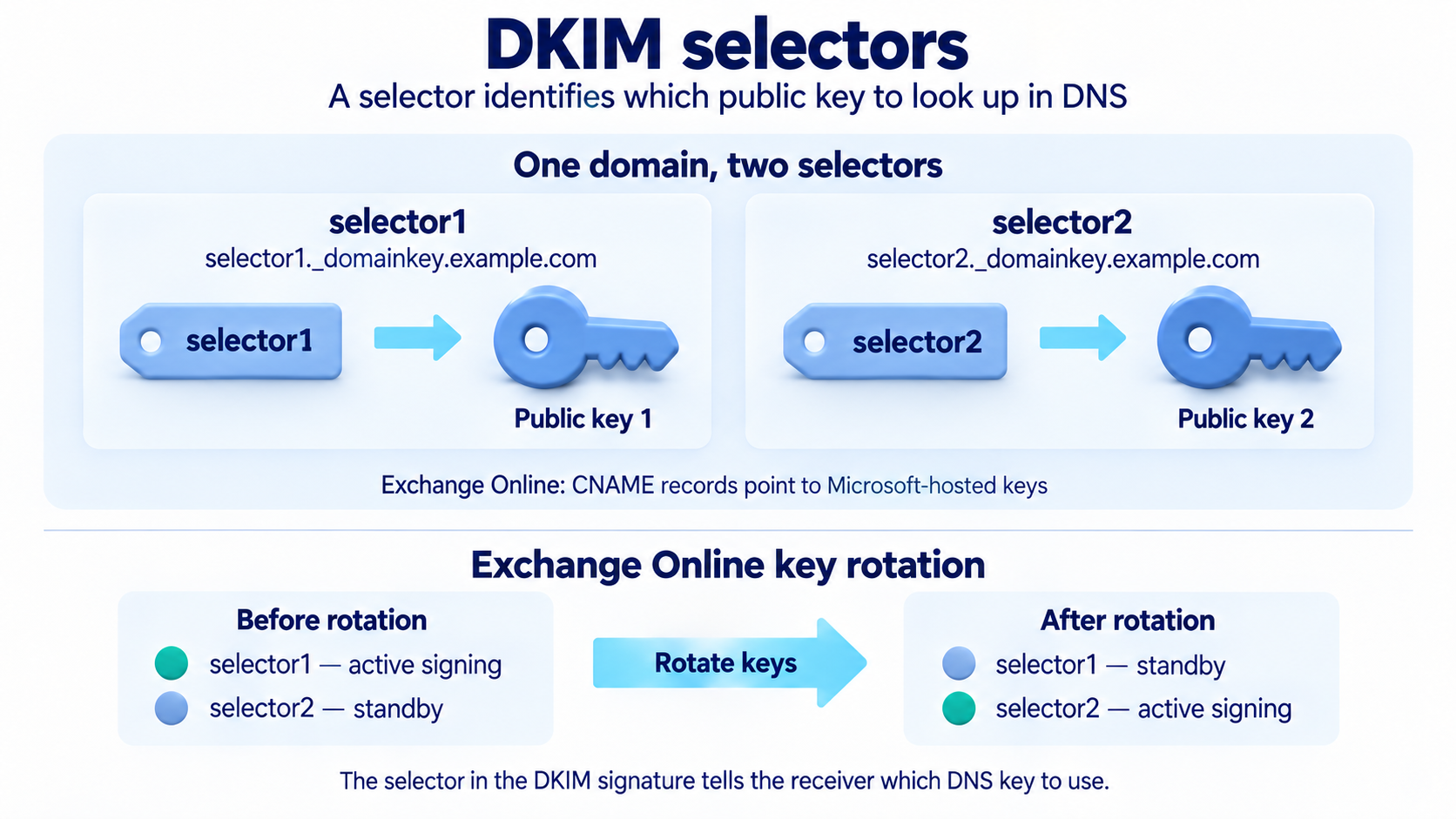
Another important detail: DKIM records in Exchange Online are published as CNAME records, not TXT records. The CNAME points to Microsoft’s key infrastructure, which means Microsoft manages the actual key material. You just need the CNAMEs in your DNS pointing to the right place.
You can check your current selectors with:
$domain = "yourdomain.com"
Write-Host "Selector1:" -ForegroundColor Cyan
Resolve-DnsName -Name "selector1._domainkey.$domain" -Type CNAME |
    Select-Object -ExpandProperty NameHost
Write-Host "Selector2:" -ForegroundColor Cyan
Resolve-DnsName -Name "selector2._domainkey.$domain" -Type CNAME |
Select-Object -ExpandProperty NameHostEnabling DKIM in Exchange Online
DKIM is not enabled by default for custom domains. You have to turn it on yourself.
Before you do that, the two required CNAME records must exist in DNS. You can see the exact values Exchange Online expects by running the follow PowerShell:
Connect-ExchangeOnline
Get-DkimSigningConfig -Identity yourdomain.com |
Select-Object Domain, Selector1CNAME, Selector2CNAMEIt requires the Exchange Online modules.
Add both CNAME records at your DNS provider and wait for them to propagate.
Once that’s done, you can enable DKIM:
Set-DkimSigningConfig -Identity yourdomain.com -Enabled $trueIf you try to enable DKIM before the DNS records are in place, it will fail.
DNS always comes first.
To check DKIM status across all domains:
Get-DkimSigningConfig | Select-Object Domain, Enabled, StatusWhy DKIM survives forwarding when SPF does not
This is one of the most important differences between SPF and DKIM.
When an email is forwarded, it gets sent from a new server. That server is almost never included in your SPF record, so SPF fails. That’s just how SPF works, and you can’t really fix it.
DKIM is different. The signature is part of the message headers and travels with the message wherever it goes. As long as the message content isn’t modified, the signature remains valid, even after forwarding.
This is exactly why you want both SPF and DKIM in place. They cover different problems and make up for each other’s weaknesses.
What a passing DKIM result looks like in a header
A successful DKIM check typically looks like this:
dkim=pass (signature was verified)
header.d=yourdomain.com header.s=selector1A failing result looks like this:
dkim=fail (signature did not verify)
header.d=yourdomain.com header.s=selector1The most common reason for a DKIM failure on a legitimate message is that something modified the message after it was signed. Mailing lists are a classic example, since they often add footers or rewrite headers. That breaks the signature.
This is a known limitation of DKIM with mailing lists, and there isn’t a clean, universal fix for it.
Next up: Email Security Foundations #06 – DKIM: key rotation, third‑party senders, and troubleshooting