
On this page
This post is part of the Email Security Foundations series.
Rotating DKIM keys
Key rotation is good practice.
If a private key is ever compromised, rotating limits how long an attacker can use it. Exchange Online makes this easy.
How to connect to Exchange Online using PowerShell to rotate the DKIM Keys.
Connect-ExchangeOnline
#Rotate the DKIM key for your domain
Rotate-DkimSigningConfig -Identity yourdomain.com -KeySize 2048
#Verify the rotation completed
Get-DkimSigningConfig -Identity yourdomain.com | Select-Object Domain, Enabled, Selector1CNAME, Selector2CNAMEAfter rotation Exchange Online switches to the other selector automatically.
The old selector stays valid for a while so messages already in transit can still be verified.
You do not need to update your DNS records. The CNAME records point to Microsoft’s infrastructure and the key swap happens there.
How often should you rotate
There is no hard rule. Once a year is a reasonable baseline for most organisations. If you have reason to believe a key may have been exposed, rotate immediately.
Some compliance frameworks ask for more frequent rotation. Check your own requirements if that applies to you.
Configuring DKIM for third-party senders
If a third-party service sends email on behalf of your domain you have two options.
Option 1 – let them sign with their own domain. The mail passes DKIM but under their domain, not yours. This works but it means DMARC alignment will rely on SPF rather than DKIM for those messages. That is fine as long as SPF is passing and aligned.
Option 2 – configure them to sign with your domain. This requires adding a CNAME record to your DNS pointing to a key the provider manages on their end. Most major platforms support this and document it clearly. It is the cleaner option if you want consistent DMARC alignment across all your sending sources.
When onboarding a new third-party sender always check two things. Are they in your SPF record? And if they support custom DKIM signing, have you set it up?
Common problems and how to fix them
DNS records not propagated yet
This is the most common cause of DKIM failures right after setup. After adding the CNAME records give it at least 30 to 60 minutes before enabling DKIM in Exchange Online.
Check whether the records are visible yet using PowerShell:
Resolve-DnsName -Name "selector1._domainkey.yourdomain.com" -Type CNAMEIf you get no result the records have not propagated yet. Wait a bit longer.
Message modified after signing
Mailing lists, some security gateways and certain forwarding rules modify messages after the DKIM signature is applied.
Adding a footer, changing a header, anything like that will break the signature.
There is not much you can do about this on your end. It is a known limitation and the DKIM failure on those messages is expected.
CNAME values do not match
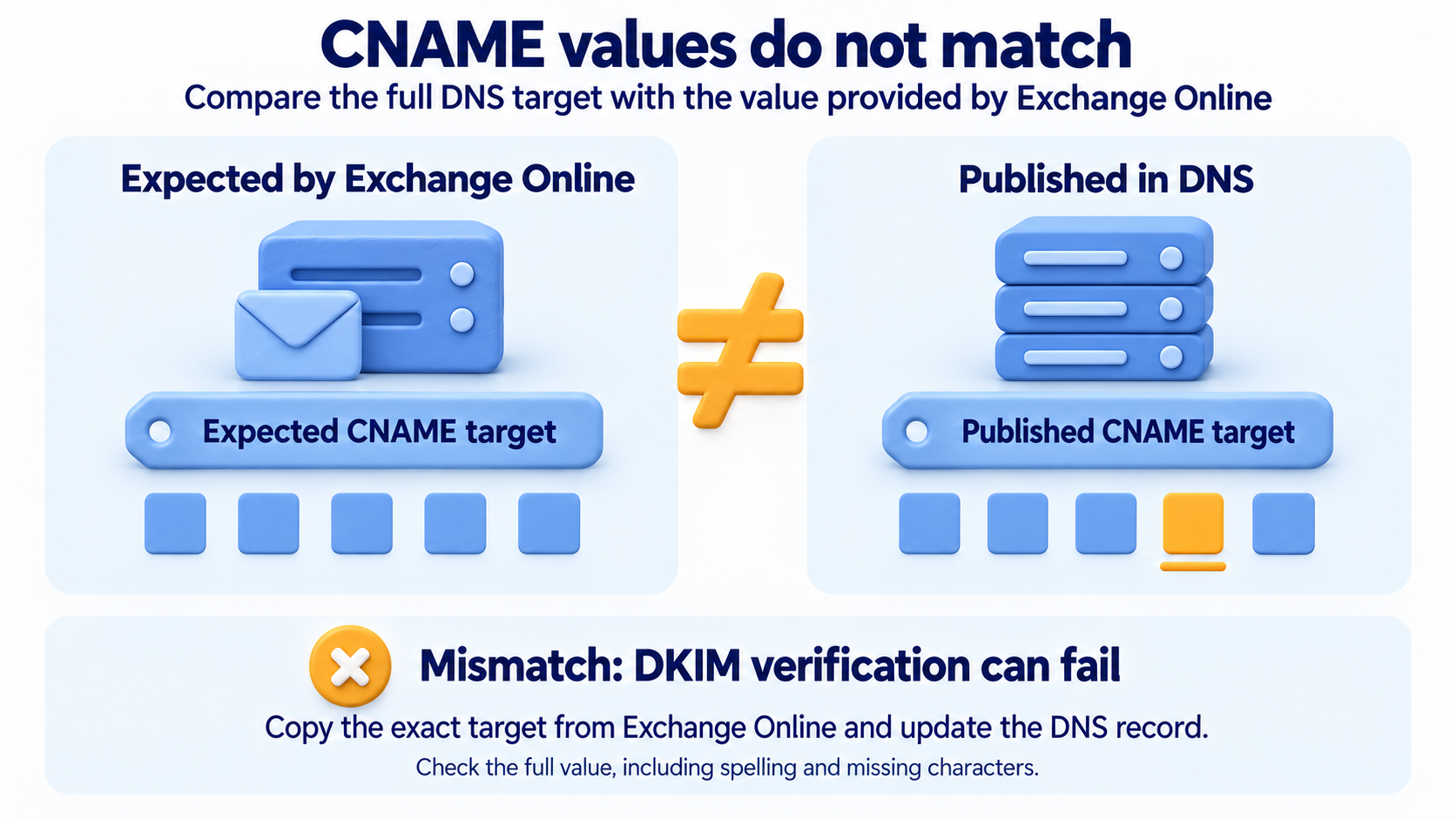
If the CNAME values in your DNS do not exactly match what Exchange Online expects, verification will fail.
Double check the expected values using PowerShell:
Get-DkimSigningConfig -Identity yourdomain.com | Select-Object Selector1CNAME, Selector2CNAMEThen check what is actually in DNS:
Resolve-DnsName -Name "selector1._domainkey.yourdomain.com" -Type CNAME | Select-Object NameHostThey need to match exactly. A single character difference will cause failures.
Full DKIM status check across all domains
Connect-ExchangeOnline
$domains = Get-AcceptedDomain | Select-Object -ExpandProperty DomainName
foreach ($domain in $domains) {
  $dkim = Get-DkimSigningConfig -Identity $domain -ErrorAction SilentlyContinue
  if ($dkim) {
      Write-Host "`nDomain: $domain" -ForegroundColor Cyan
      Write-Host "  Enabled: $($dkim.Enabled)"
      Write-Host "  Status:  $($dkim.Status)"
      }
}Run this after any changes to get a quick overview of where every domain stands.
Next up: Email Security Foundations #07 – DMARC explained: alignment, policy levels and how it actually works
1 thought on “DKIM: key rotation, third-party senders and troubleshooting”
Comments are closed.